How to Install a Laptop Privacy Filter in 2 Minutes
Last updated: October 2026
Quick answer: To install a laptop privacy filter, clean the screen, check which side faces out, then fix the filter with the mount it came with: adhesive tabs on the bezel, slide-in hasps along the edges, or magnetic strips that hold it in place. Line the filter up with the screen edges before anything sticks, and the job usually takes about two minutes once the screen is clean.
Customers often tell us the installation looked harder than it was. Most of the time spent is cleaning the screen and getting the filter straight. This guide covers the common mounting types, which side faces out, and how to fix the problems people run into most.
Before you start: check the size and clean the screen
A filter that is the wrong size will never sit right, however carefully you install it. Before opening the pack, make sure the filter matches your laptop's screen size and aspect ratio. If you are not sure, our guide on how to measure your laptop screen for a privacy filter explains how to check the active area, which is the lit part of the display.
Then clean the screen:
- Switch off the laptop or let it sleep so smudges are easy to see.
- Wipe off dust with a dry microfibre cloth.
- Remove fingerprints with a cloth very lightly dampened with water.
- Dry the screen fully before fitting anything.
Dust trapped behind a filter shows up as bright specks, so this step matters more than any other.
Which side of the privacy filter faces out?
Many privacy filters have two different sides: one glossy and one matte. The matte side has a fine texture that cuts reflections from lights and windows. The glossy side looks clearer and sharper but reflects more.
On most reversible filters, either side gives privacy, so you can choose based on your room. In a bright office or near a window, face the matte side toward you. In a dim room where you want sharper text, the glossy side out can look better. Some filters are made to work one way only, with markings or a printed label to show the front. Follow the label or pack instructions when there is one.
A quick test: hold the filter up to the screen before fixing it, look straight on, then look from the side. The screen should be clear from the front and dark from the side.
How to install laptop privacy filter types, step by step
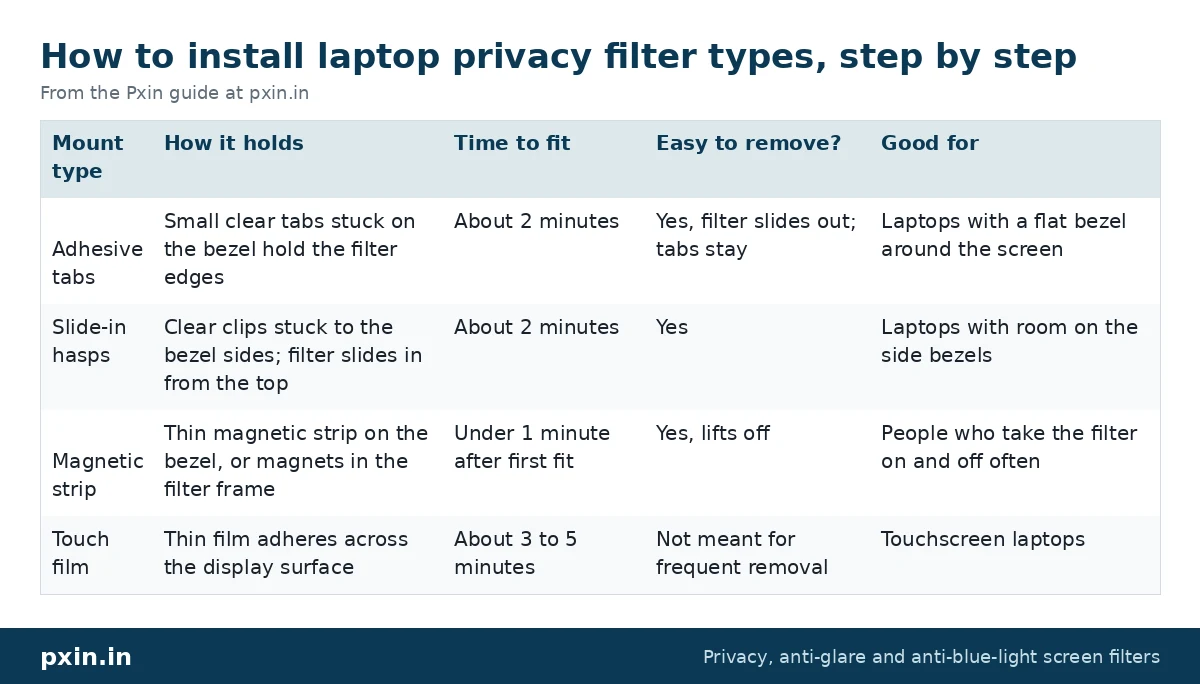
The table below sums up the main mounting types. Your pack will contain one of these.
| Mount type | How it holds | Time to fit | Easy to remove? | Good for |
|---|---|---|---|---|
| Adhesive tabs | Small clear tabs stuck on the bezel hold the filter edges | About 2 minutes | Yes, filter slides out; tabs stay | Laptops with a flat bezel around the screen |
| Slide-in hasps | Clear clips stuck to the bezel sides; filter slides in from the top | About 2 minutes | Yes | Laptops with room on the side bezels |
| Magnetic strip | Thin magnetic strip on the bezel, or magnets in the filter frame | Under 1 minute after first fit | Yes, lifts off | People who take the filter on and off often |
| Touch film | Thin film adheres across the display surface | About 3 to 5 minutes | Not meant for frequent removal | Touchscreen laptops |
Adhesive tabs
- Place the filter on the screen and centre it so the edges line up with the active area.
- Peel a tab and stick it to the bezel so it overlaps the filter edge, usually at each side.
- Press each tab firmly for a few seconds.
- To remove the filter later, slide it out from under the tabs. The tabs can stay in place.
Slide-in hasps
- Hold the filter against the screen to see where the side edges fall.
- Stick the hasps to the side bezels, open end facing up, so the filter can drop into them.
- Slide the filter down into the hasps from the top.
Our installation procedure guide shows both the adhesive and the hasp method with photos.
Magnetic filters
- If your kit has a separate magnetic strip, clean the bezel and stick the strip along the top or sides as shown in the instructions.
- Bring the filter close and let the magnets pull it into place.
- Check the edges are even and the filter is not covering the camera.
See our magnetic privacy screen installation guide for Windows laptops and MacBooks.
Touchscreen film
Touch films cover the whole display, so they need the most care with dust. Line the film up, peel the backing a little at a time, and press it down with a card from the centre outward. Our touch privacy screen installation guide walks through each step, and the 360 laptop privacy installation guide covers 360 filters.
Can I close my laptop with the privacy filter on?
It depends on the mount and the laptop. Thin films and well-fitted magnetic filters often let the lid close, but hasps and tabs can stop a thin laptop from closing fully, and pressure on the screen is not good for it.
MacBook owners should take extra care. Apple points out that a closed MacBook leaves almost no room between screen and keyboard. It recommends nothing thicker than 0.1 mm over the camera area, and cautions that objects left on the screen can damage it when you shut the lid. Read Apple's guidance on closing a MacBook with a screen cover. With a magnetic filter, remove it or check it is sitting flat before you close the lid.
Fixes for common installation problems
Bubbles under a touch film. Push small bubbles to the nearest edge with a card. If a bubble has a dust speck in the middle, lift that corner gently, touch the speck with the dust sticker, and lay the film back down.
The magnetic filter keeps falling off. Check that the strip is stuck to a clean, dry bezel and was pressed down firmly. Make sure you have the correct size, since a filter slightly too small has less magnet contact.
The filter is crooked. Remove it and line it up again before pressing tabs or hasps. Once adhesive is pressed hard, moving it weakens the hold.
Dust specks behind the filter. Lift the filter, clean the screen again, and refit. Our guide on how to clean a privacy screen explains which cloths and cleaners are safe.
The honest limitation
Tabs and hasps need some flat bezel to stick to. On laptops with very thin bezels, there may not be much room, and a magnetic or film option may suit better. Adhesive tabs can also leave a little residue on the bezel when you remove them years later, which usually wipes off with a damp cloth and patience.
Watch: PxIn laptop privacy screen installation methods - Adhesive method - Slide In Off method Updated
https://www.youtube.com/watch?v=XDXUtRdUk48
Developer: paste this YouTube link on its own line in WordPress so it shows as an embedded video.
Frequently asked questions
How long does it take to install a laptop privacy filter?
For tabs, hasps or magnets, about two minutes after the screen is clean. Touch films take a few minutes longer because they cover the whole display.
Which side of a privacy filter should face me?
On reversible filters, the matte side facing you reduces glare, and the glossy side looks sharper in dim rooms. If your filter has a printed label or arrow, follow it.
Can I remove and reuse a privacy filter?
Yes, tab, hasp and magnetic filters are made to be taken off and put back. Adhesive touch films are meant to stay on and may not stick as well after removal.
Why does my privacy filter not cover the whole screen?
Filters are sized to the active area, not the outer frame, so a thin strip of bezel stays visible. If part of the lit screen is uncovered, the filter may be the wrong size or aspect ratio.
Do I need tools to install a privacy filter?
No. A microfibre cloth is enough for most filters. A plastic card helps with touch films.
Find the right filter
If you are still choosing a filter, start with our laptop privacy screen guards, which are listed by screen size and aspect ratio. Pick the size that matches your measured screen, then come back to this guide when it arrives.